Setting Up LAN Connection Between 2 PCs
To create a simple LAN connection between two PCs/Laptops, the only hardware requisite is an Ethernet Crossover Cable. Ethernet Crossover Cables are easily available in the market.

Setting up LAN Connection
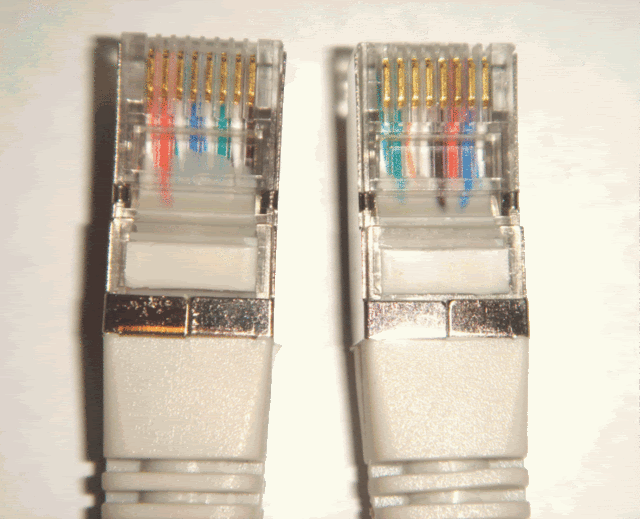
Setting up LAN Connection
- Connect the one end of the cable to your PC/laptop and then the other end to the other PC/laptop and make sure the clips are locked into the Ethernet Port.
- If it’s correctly connected, you should be noticing a computer icon near the clock in the taskbar on both the PCs. Right-click and choose Network Connections. Or Control Panel -> Network Connections.
Windows Vista & Windows 7 users, open Network & Sharing Center from Control Panel and click Manage Network connections.
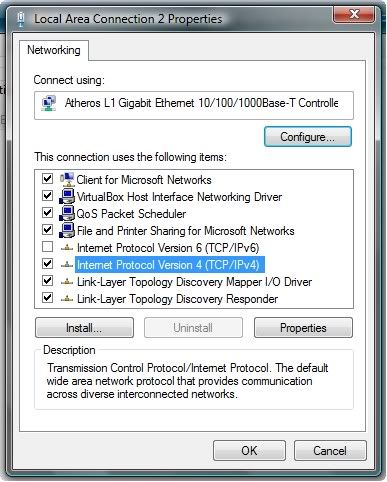
- Right-click Local Area Connection and choose Properties
- Double-click Internet Protocol (Internet Protocol Version 4 – IPv4)
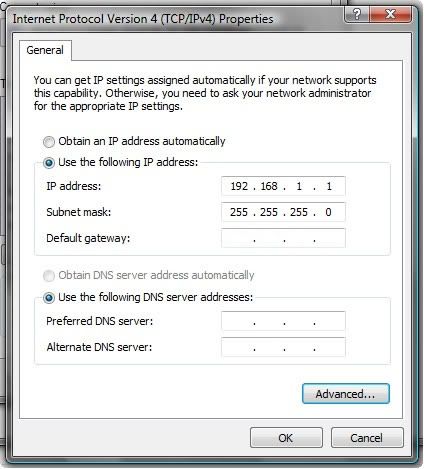
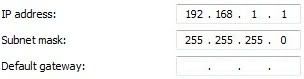
- Choose “Use the following IP Address”> radio box and enter the following details.
- Click OK
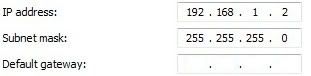
- Follow steps 1-4 on the other PC, and enter it’s IP & Subnet Mask as:
Workgroup Name
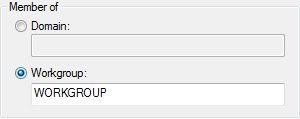
If both the PCs use the same Workgroup name “WORKGROUP” (by default), you may leave step 8 and 9.
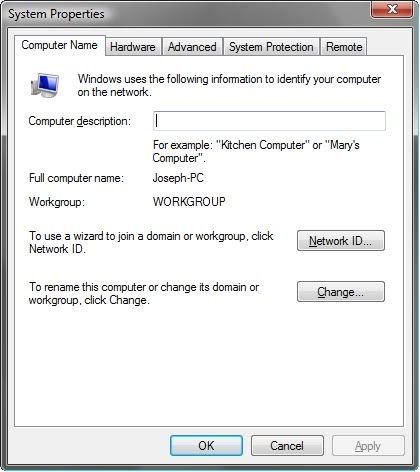
- Finally you’ll have set up a Workgroup name on both the PCs/Laptops. To do so, right-click My Computer, click Properties, select the Computer Name tab and click Change and enter a name. Remember, the name should be the *same* on both PCs.
- Click OK
- Restart both the PCs
Comments
Post a Comment